
Cash Payouts#
The Section: Cash Payouts section covers everything listed in the Table of Contents below:
Cash Payouts Homepage Location#
To Find the Cash Payouts List Homepage:
Locate the primary sidenav to the left of the page.
Don’t see the sidenav?
See How to Toggle Primary Sidebar for more information.
Select the dropdown for the Navigation Category: Dividend category.
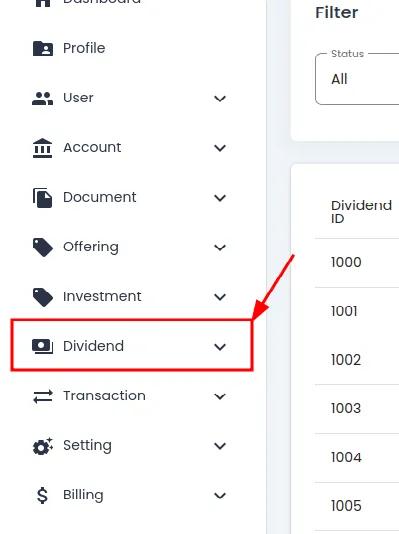
Dividend Category, Primary Sidenav, Dropdown Location#
Select Section: Cash Payouts from the dropdown.
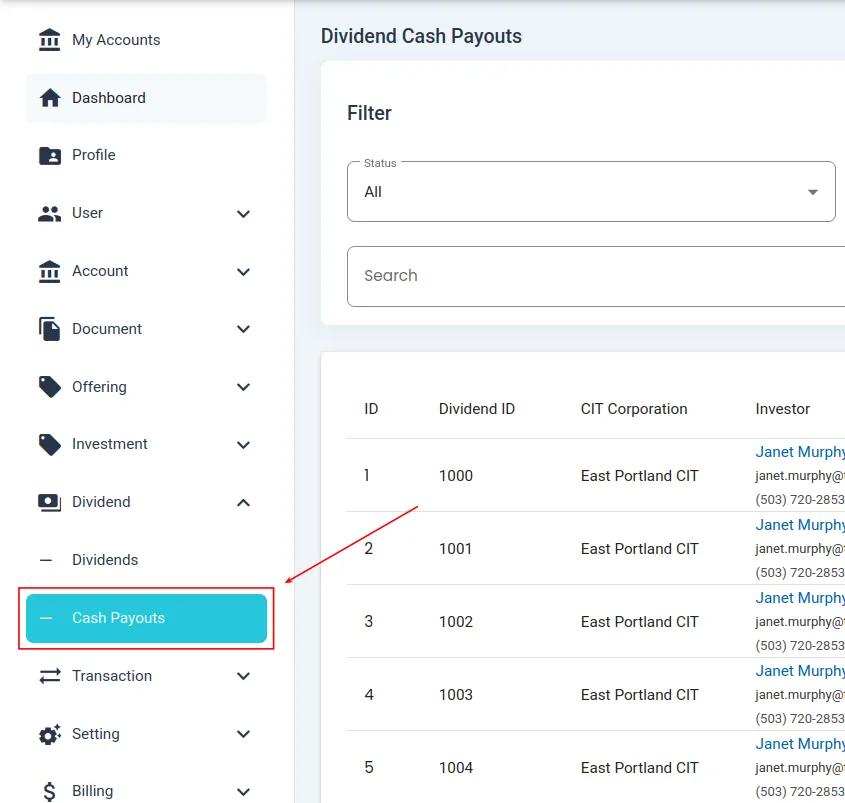
Cash Payouts Homepage#
Cash Payouts List Table#
The Table: Cash Payouts List table is what first appears on the homepage of the Section: Cash Payouts section.
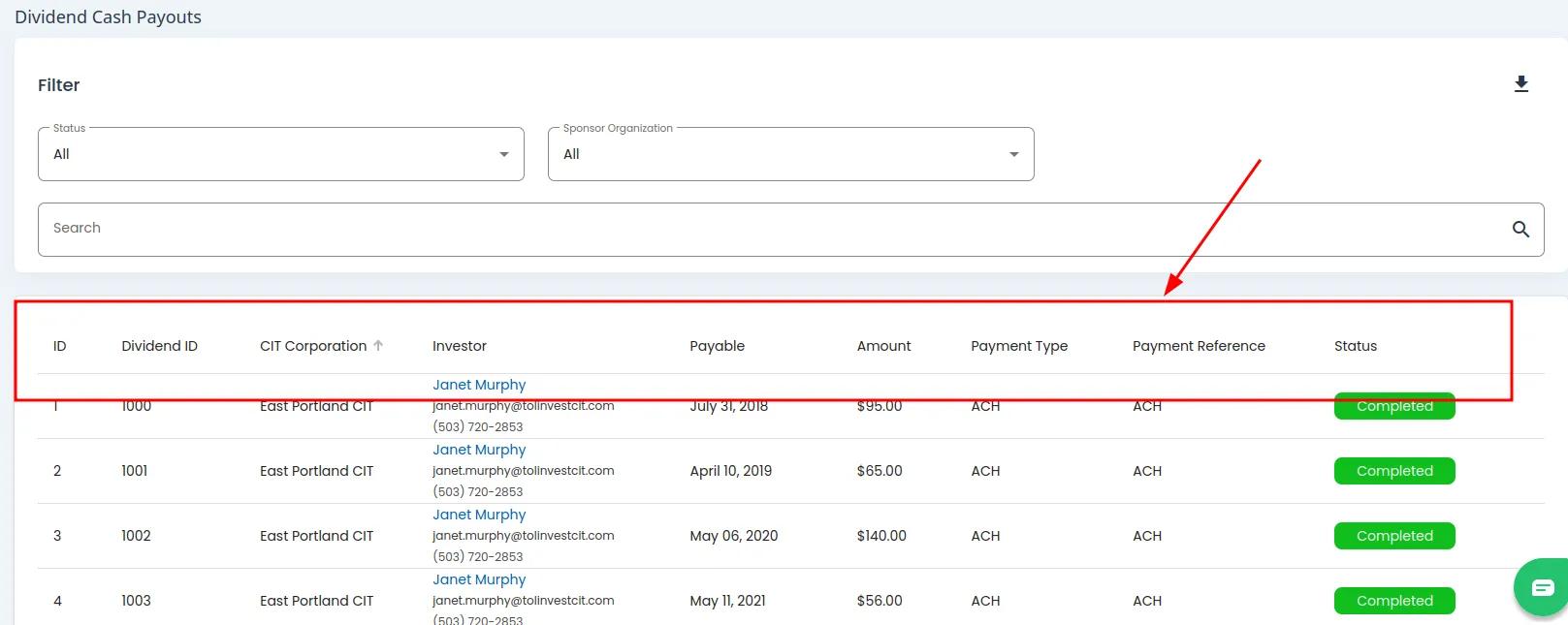
Cash Payouts List Table#
Columns: Cash Payouts List Table#
The Table: Dividend Cash Payouts table has the following Column: Columns:
Column: Cash Payout: The cash payout identifier or name
Column: Organization: The organization associated with the cash payout
Column: Payable Date: The date when the cash payout is payable
Column: Amount: The total amount of the cash payout
Column: Status: The current status of the cash payout
Column: Action: Available actions for the cash payout
How to: View Details About the Investor for a Cash Payout#
Find the Column: Investor column in the Table: Dividend Cash Payouts table.
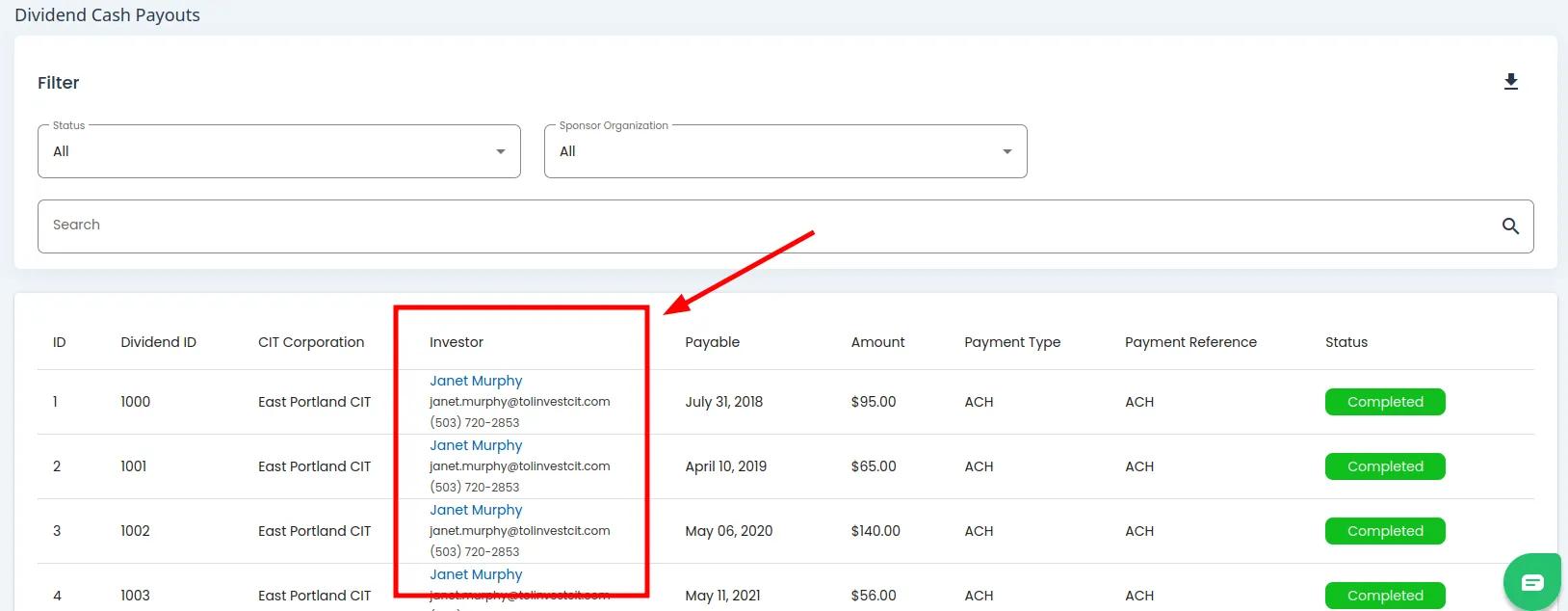
Dividend, Cash Payouts, Investor Column#
Click on the Item: Investor you wish to view details for.
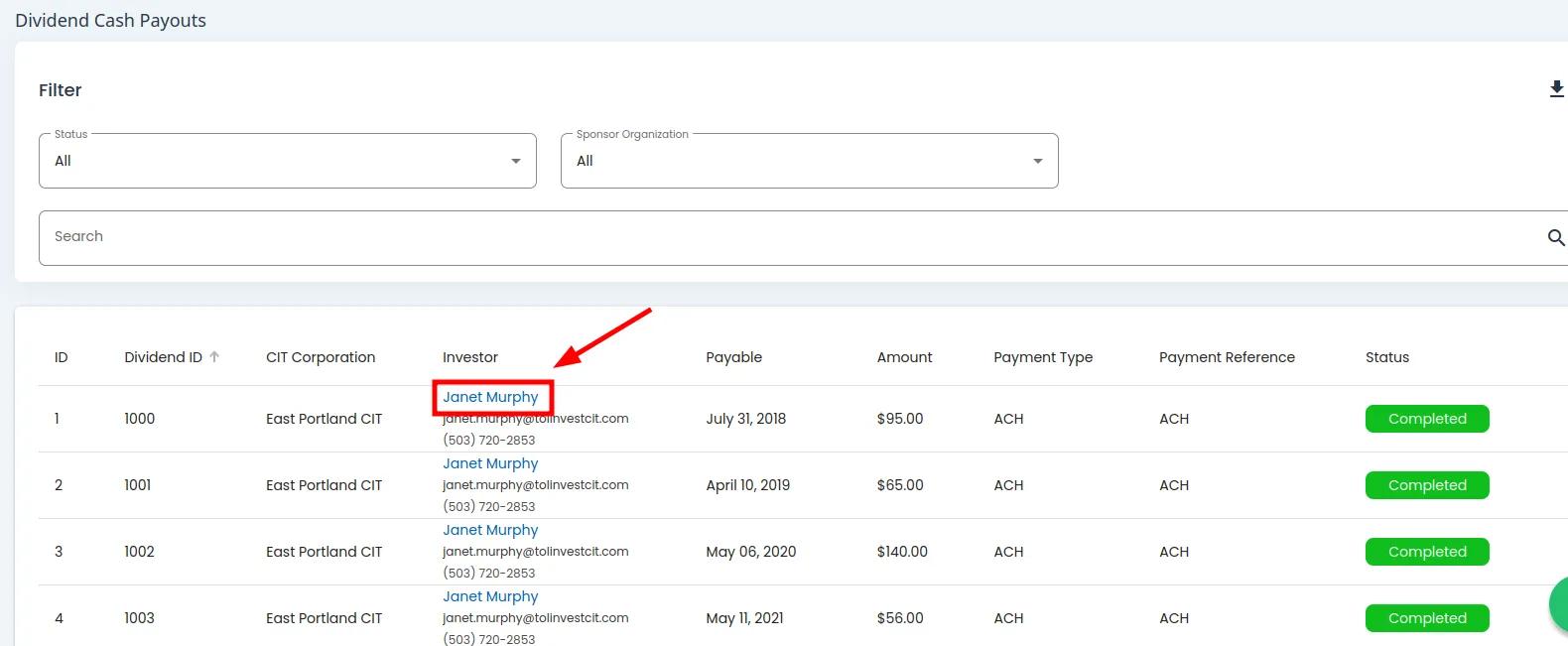
Dividend, Cash Payouts, Investor Select Example#
Action Complete: You will be redirected to the Investor Details page.
You will be redirected to the Investor Details page once you click an Item: Investor’s Name.
Using Cash Payouts Filters#
To Filter Cash Payouts:
Locate the filter section above the table.
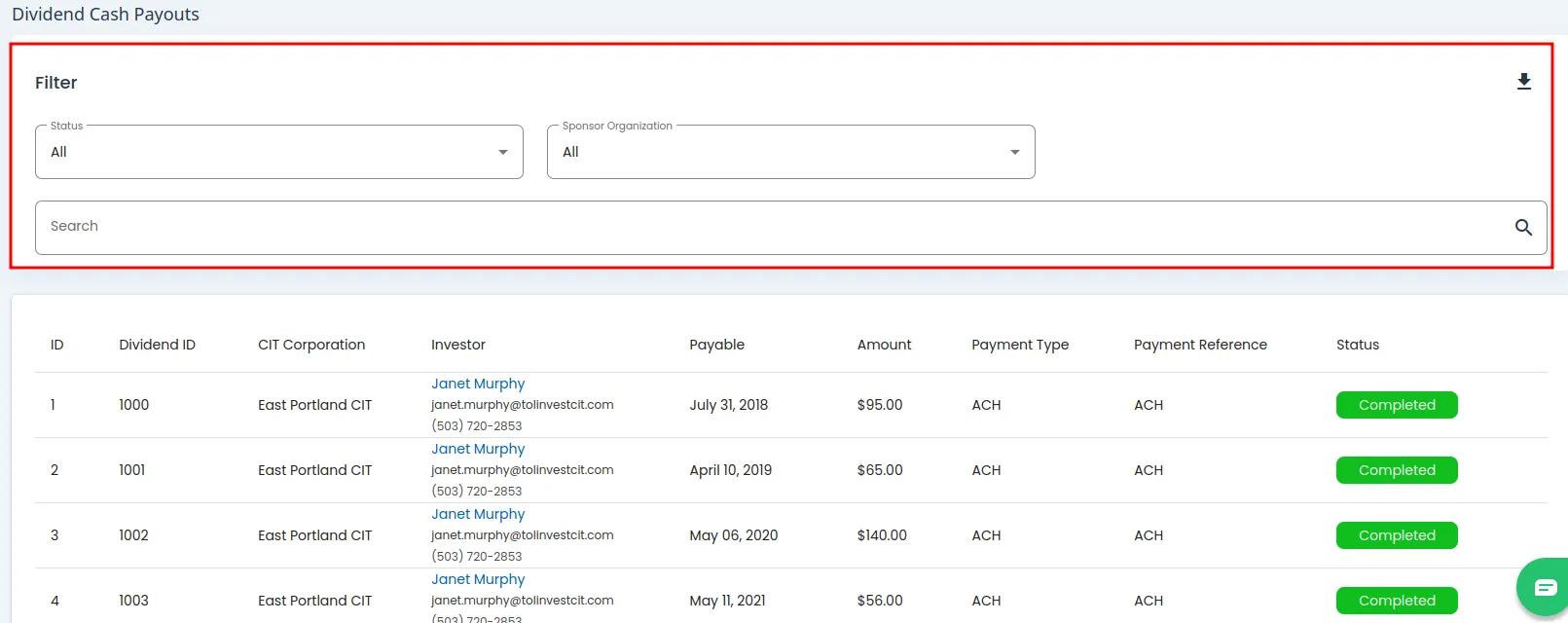
Dividend, Cash Payouts, Filter Location#
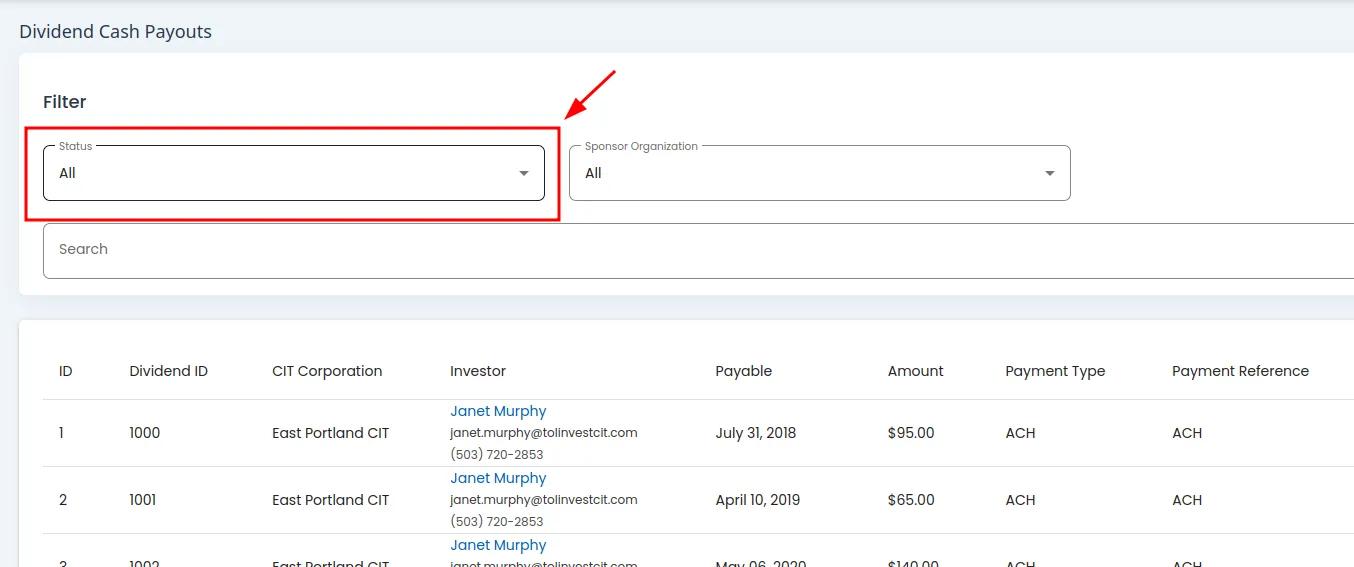
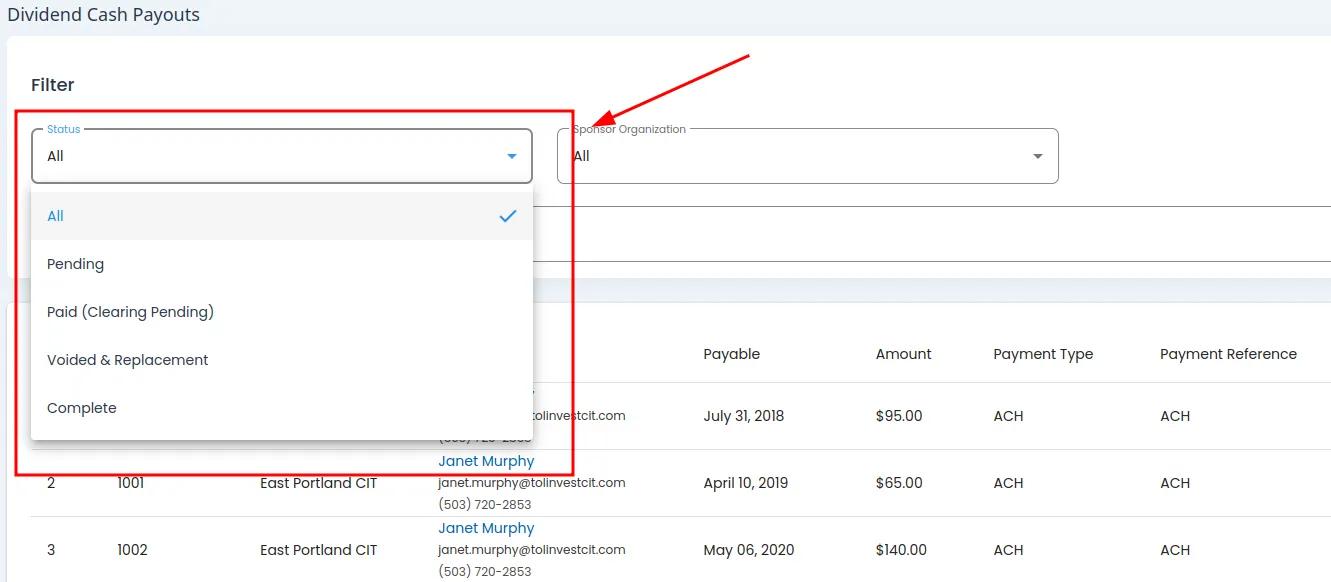
How to: Filter by Status#
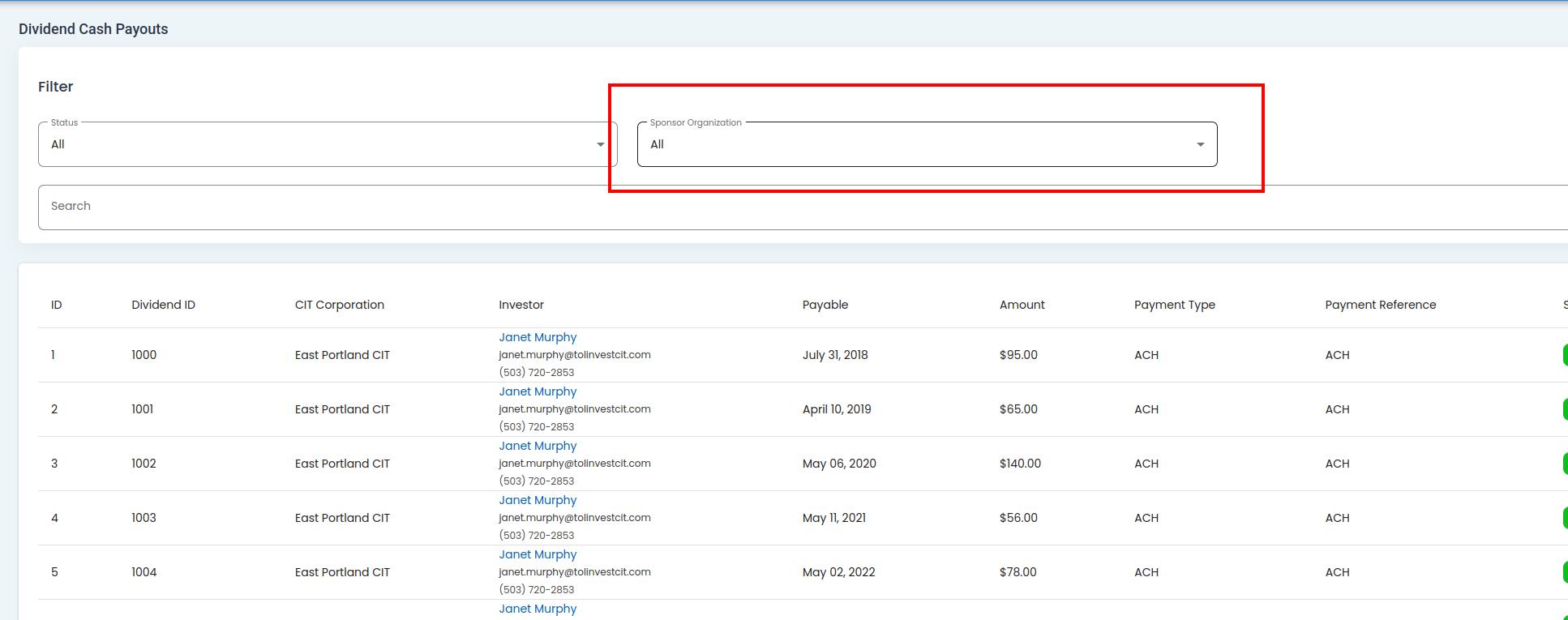
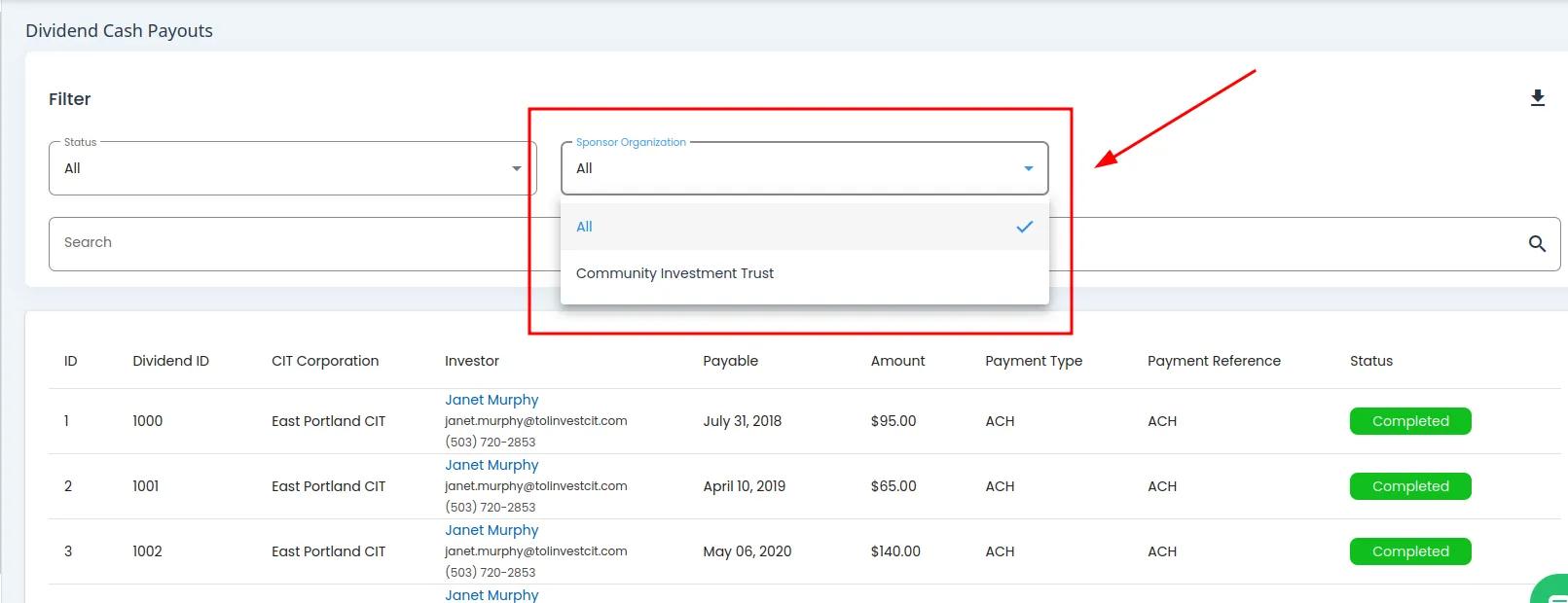
How to: Filter by Sponsor Organization#
How to: Search for Cash Payout Information#
Find and Action: Click on the Item: Search field.
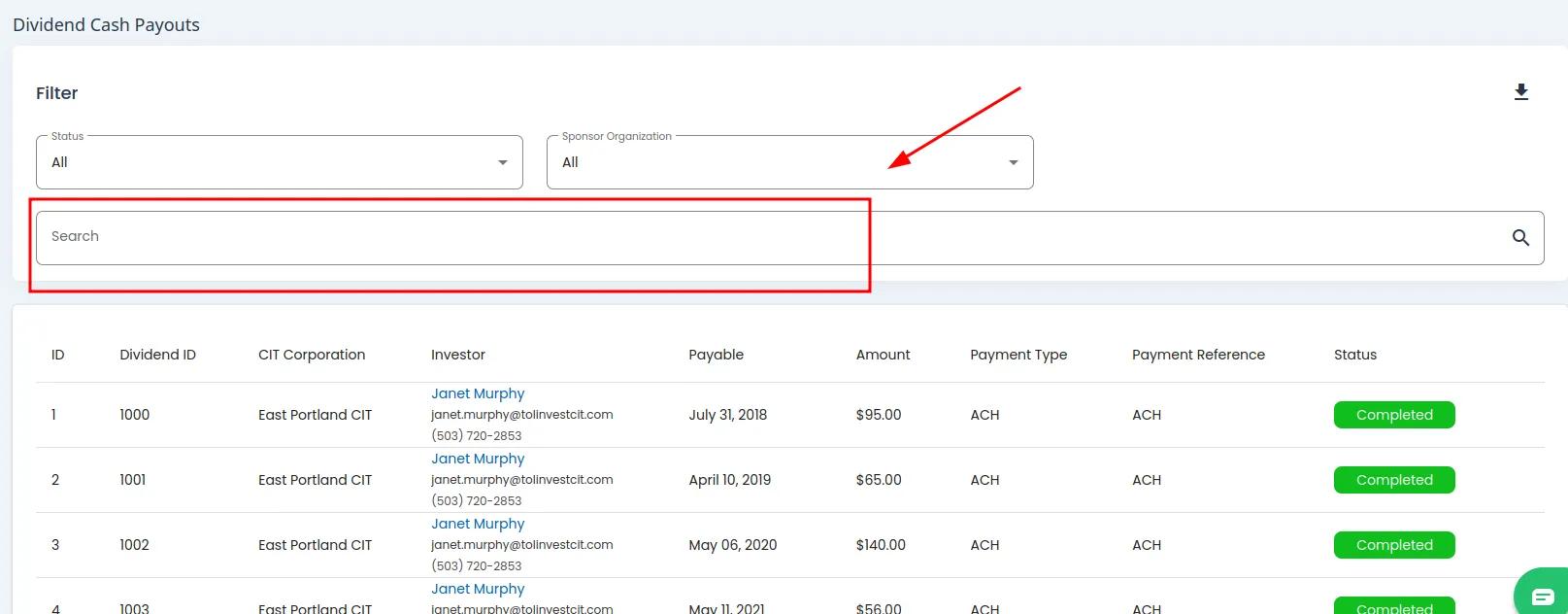
Cash Payouts, Search Bar, Location#
Action: Type in the Name of the Investor you want to see Option: Cash Payouts for.
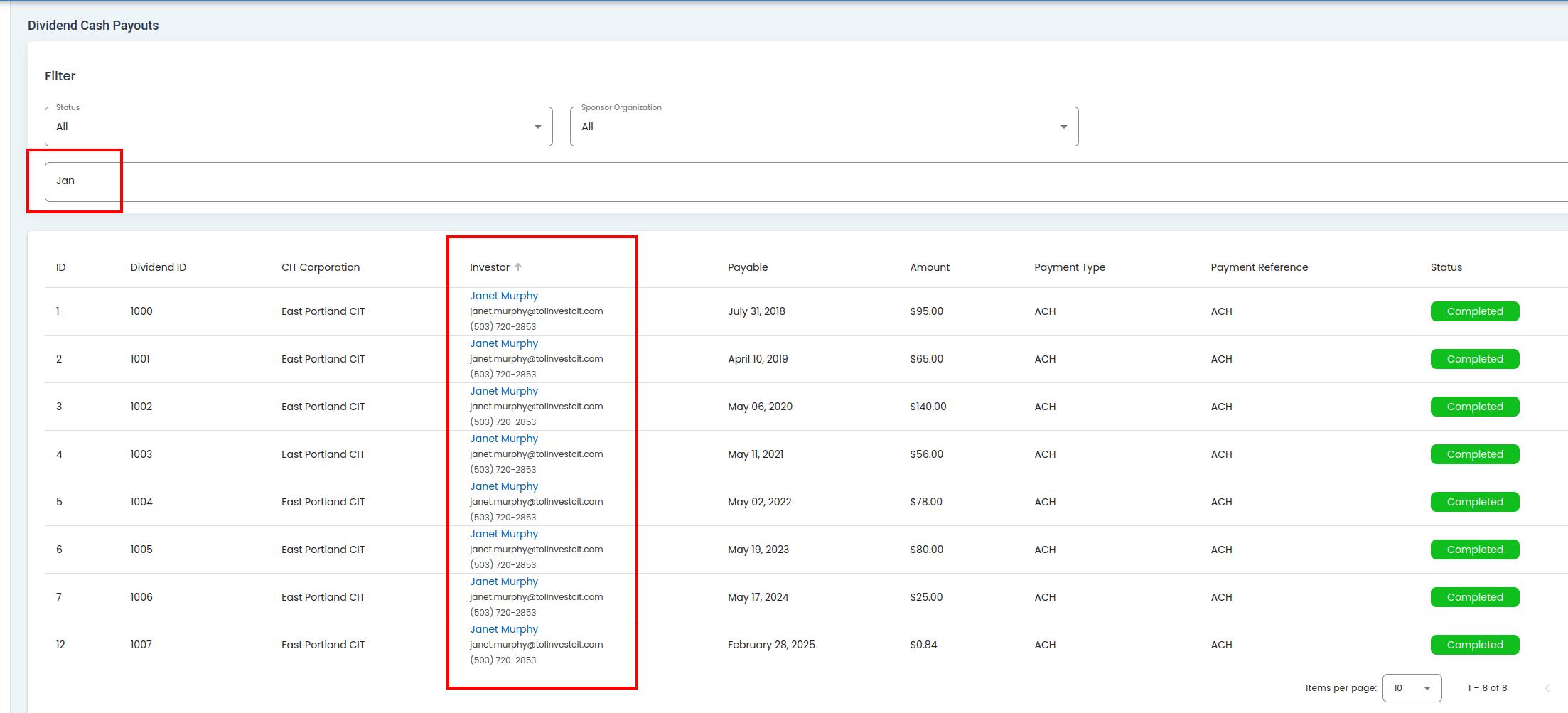
Cash Payouts, Search Bar, Search Example#
Action Complete: The table will filter as the options are selected
The table will automatically refresh to show only items matching your selected filters.
How To: View More Information#
Action: Click on the name of the Item: Investor you want to view more information for.
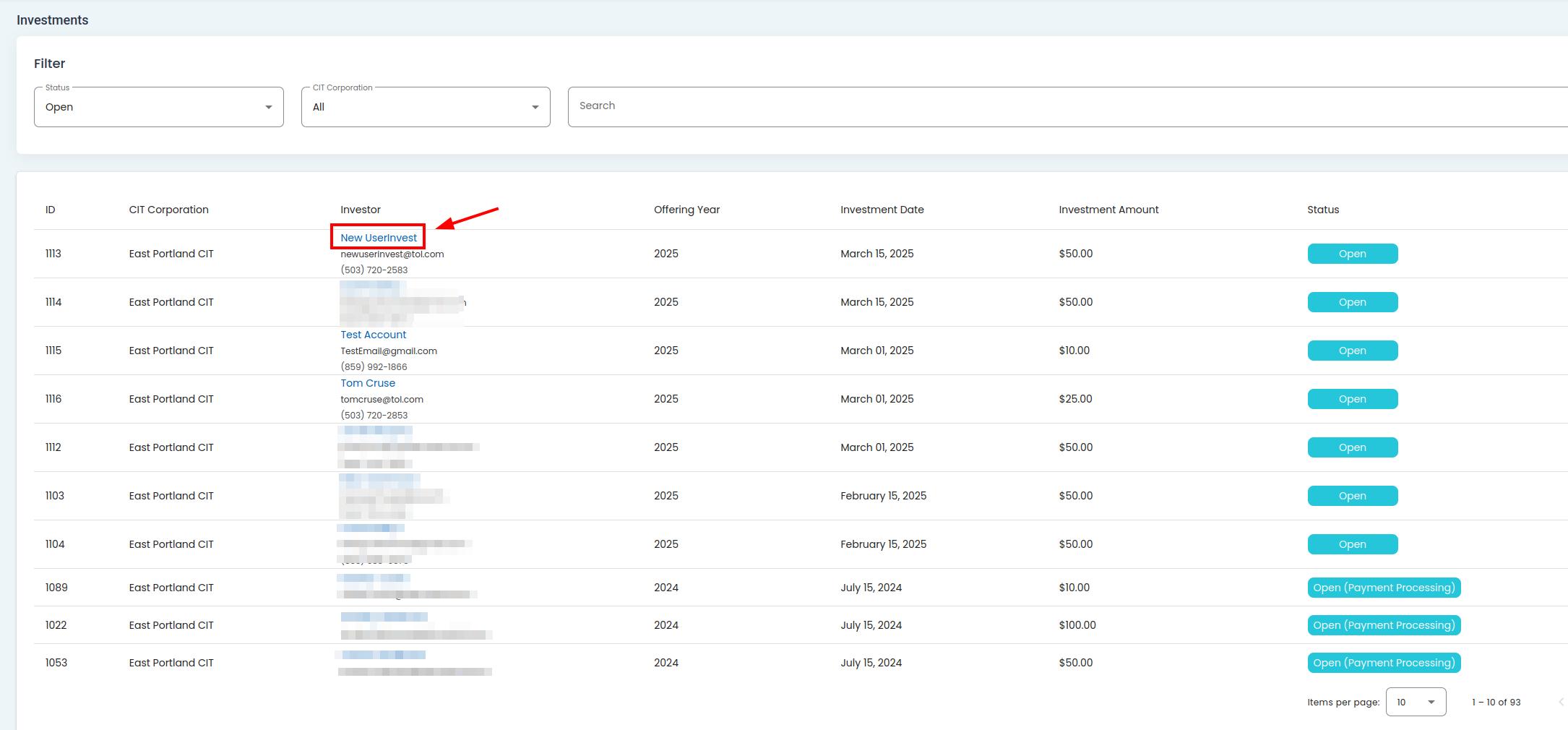
Cash Payouts, Investor Click#
Action Complete: You Will Be Redirected to the Investor Details Page
See View Investor Details for more information.