
Matching Payments to Invoices#
The Section: Matching Payments to Invoices section demonstrates how to match payments with specific invoices in the system.
Overview: Matching Payments to Invoices#
The Payment Management system allows you to associate payments with specific invoices by selecting invoices and applying payments to them. This process helps track which payments correspond to which invoices in the system.
Steps: Matching Payments to Invoices#
Step 1: Locate the Invoice Checkbox#
First, locate the checkbox column in the Table: Invoices Table.
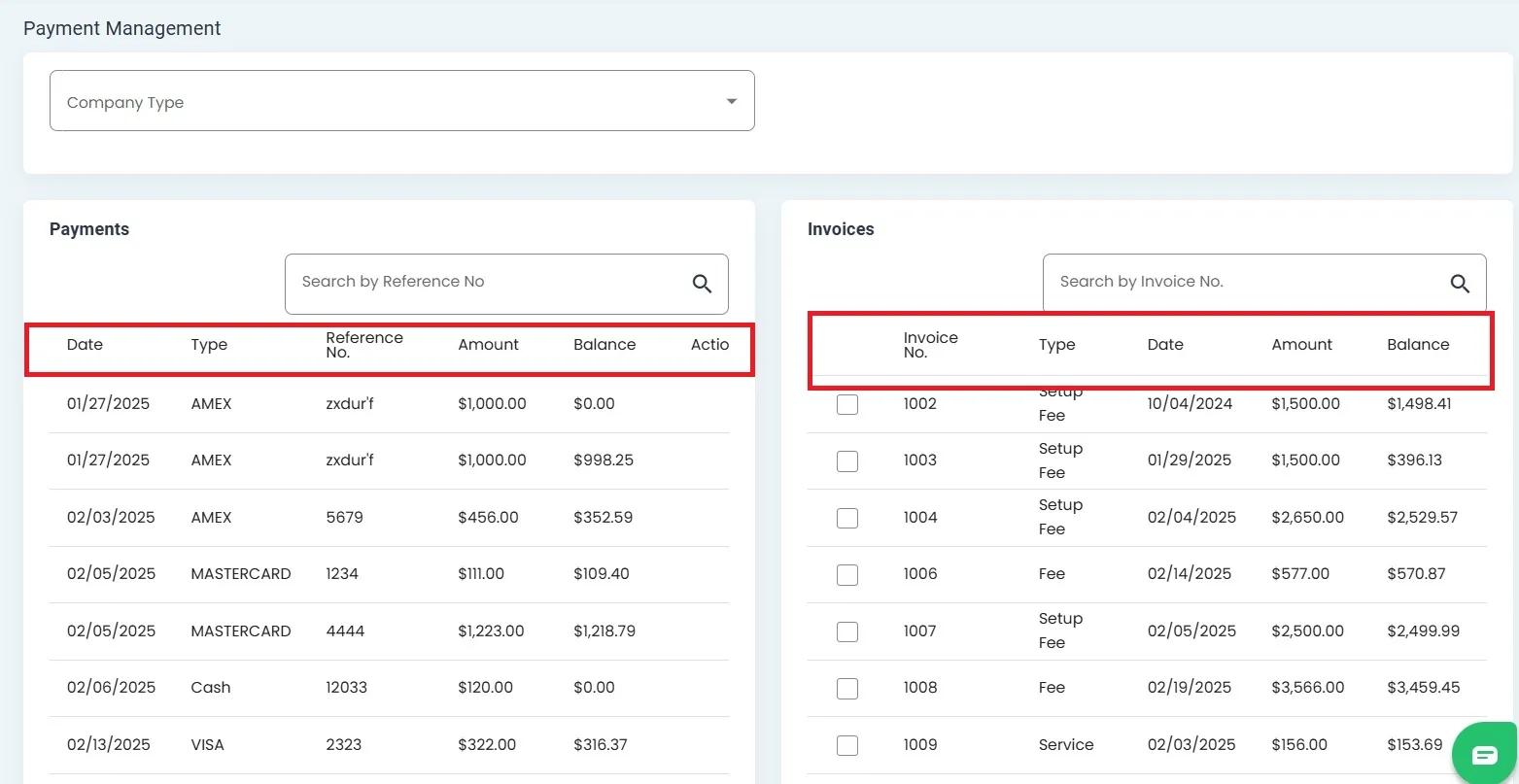
Invoice table with checkbox column highlighted#
Step 2: Check an Invoice#
Select the invoice you want to make a payment to by checking the checkbox next to it.
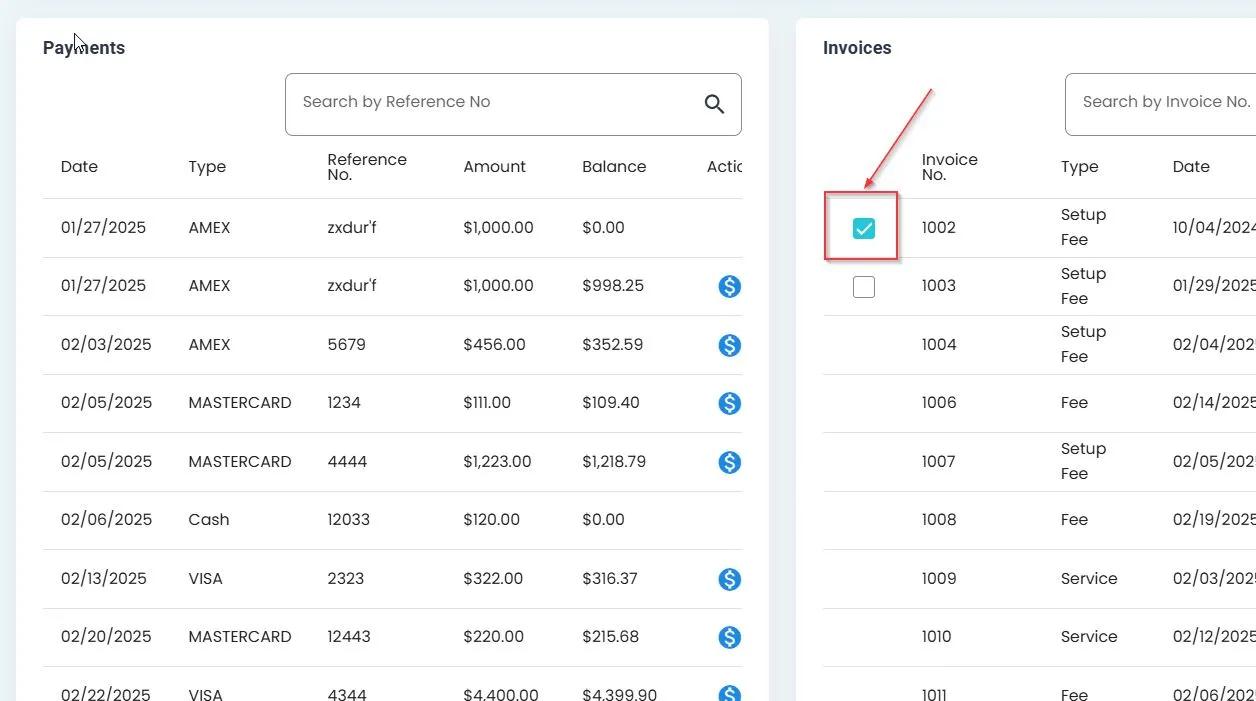
Selecting an invoice by checking the checkbox#
Step 3: View Result in Payments Table#
After selecting an invoice, notice how the Payments table updates to show a new column related to the selected invoice.
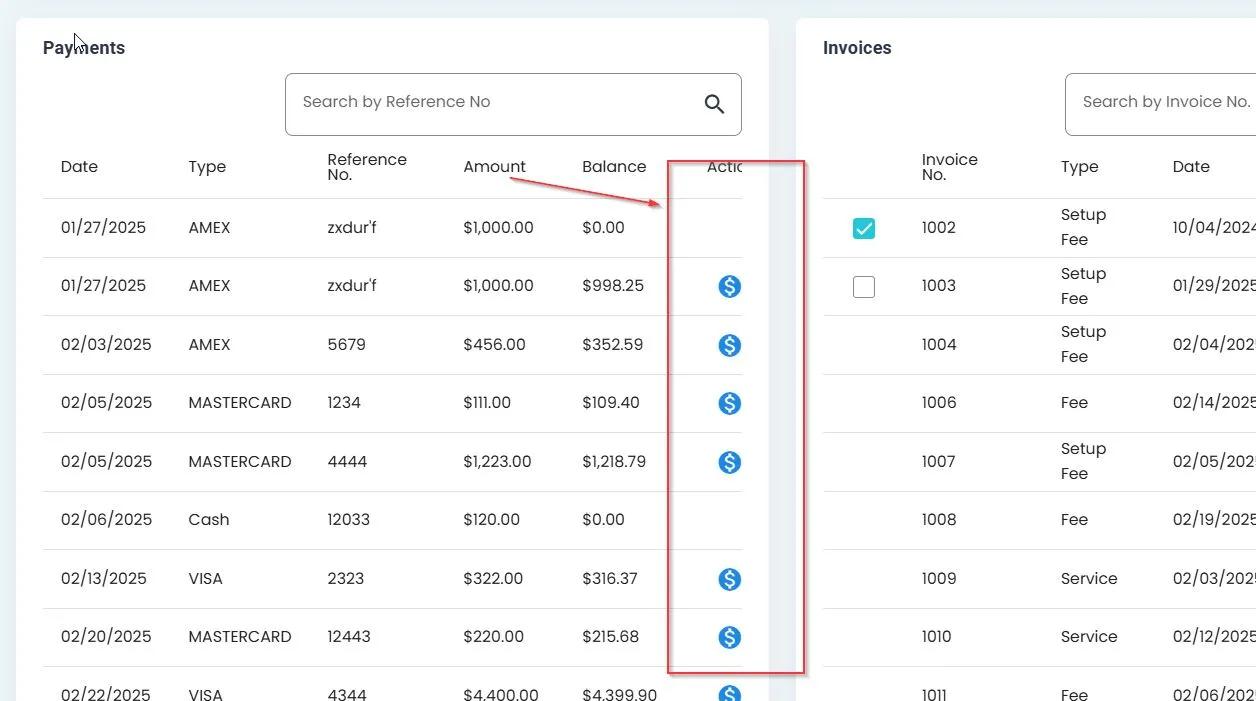
The Payments table updates to show information related to the selected invoice#
Step 4: Click the Payment Action Button#
Locate and click the payment icon (money symbol) next to the invoice you want to make a payment to.
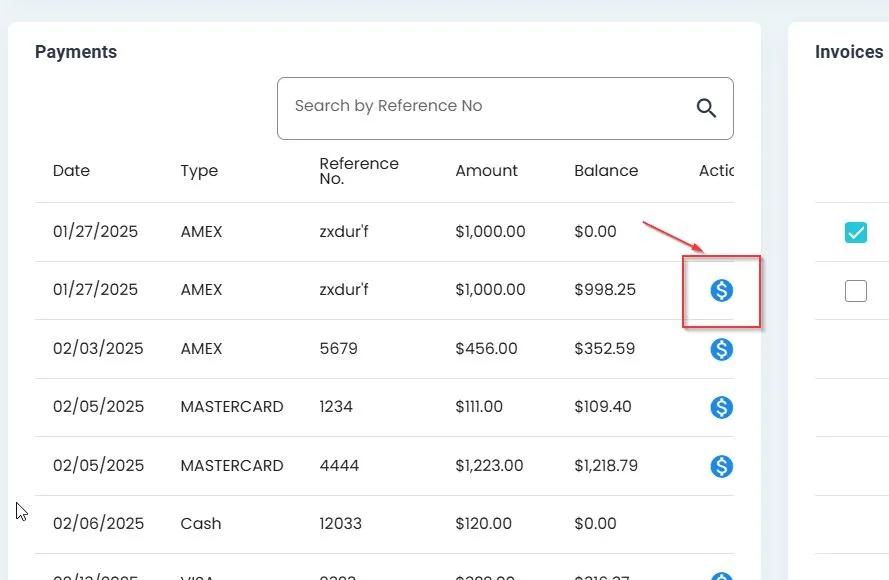
Click the payment action button to initiate payment#
Step 5: View Payment Window#
A payment popup window will appear with available payment information.
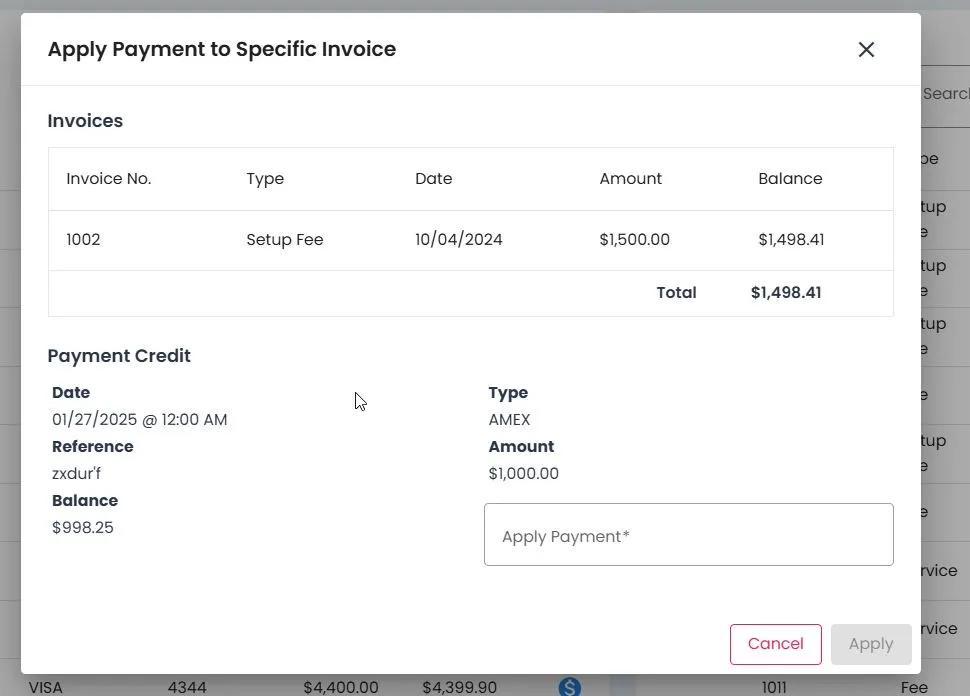
Payment popup window with available information#
Step 6: Locate Apply Payment Field#
Find the Apply Payment field in the payment window.
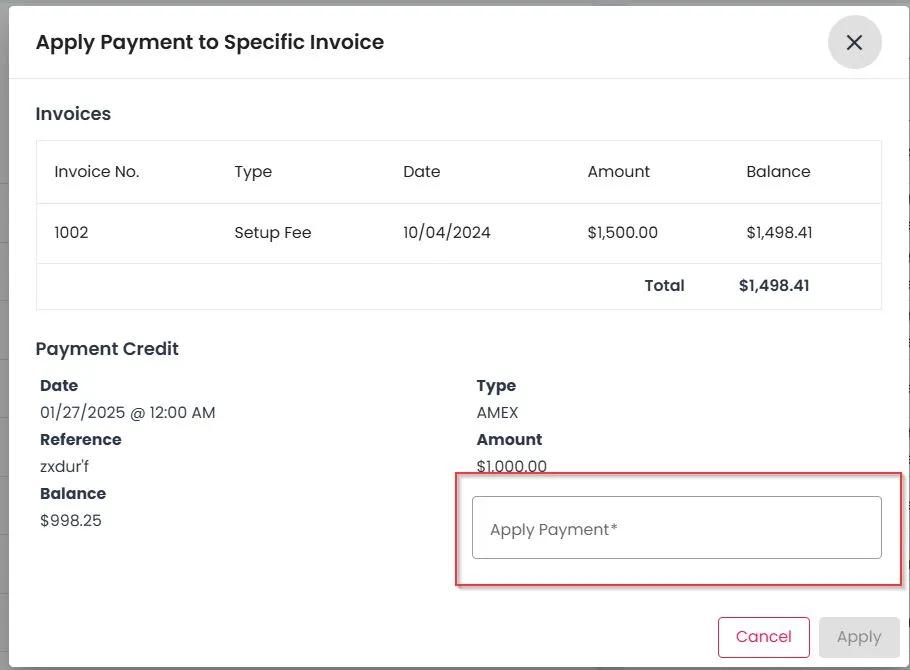
Locate the Apply Payment field in the window#
Step 7: Enter Payment Amount#
Enter the desired payment amount in the Apply Payment field.
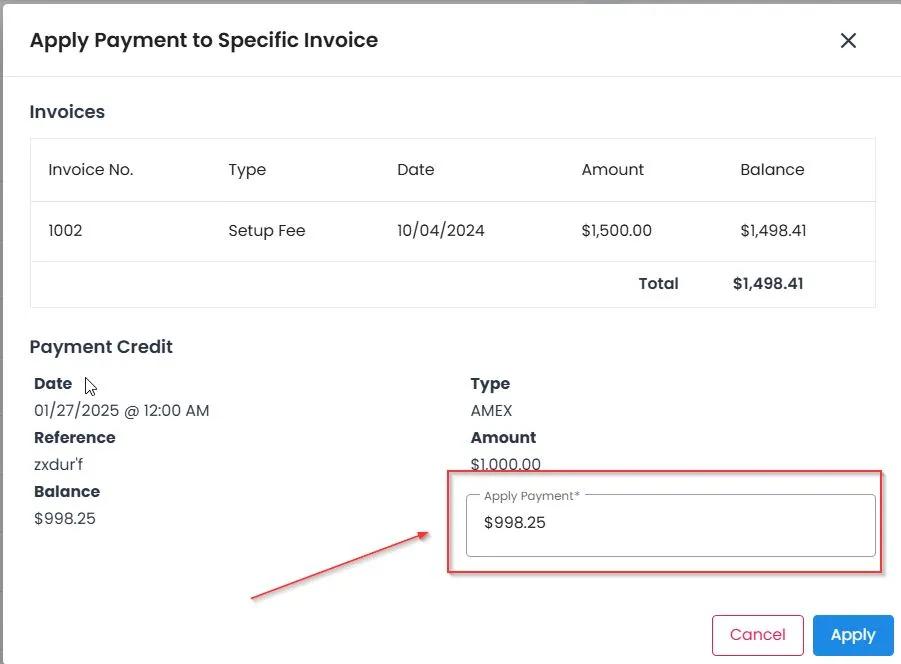
Enter the amount you wish to apply to this invoice#
Step 8: Save the Payment#
Click the Save button to apply the payment to the selected invoice.
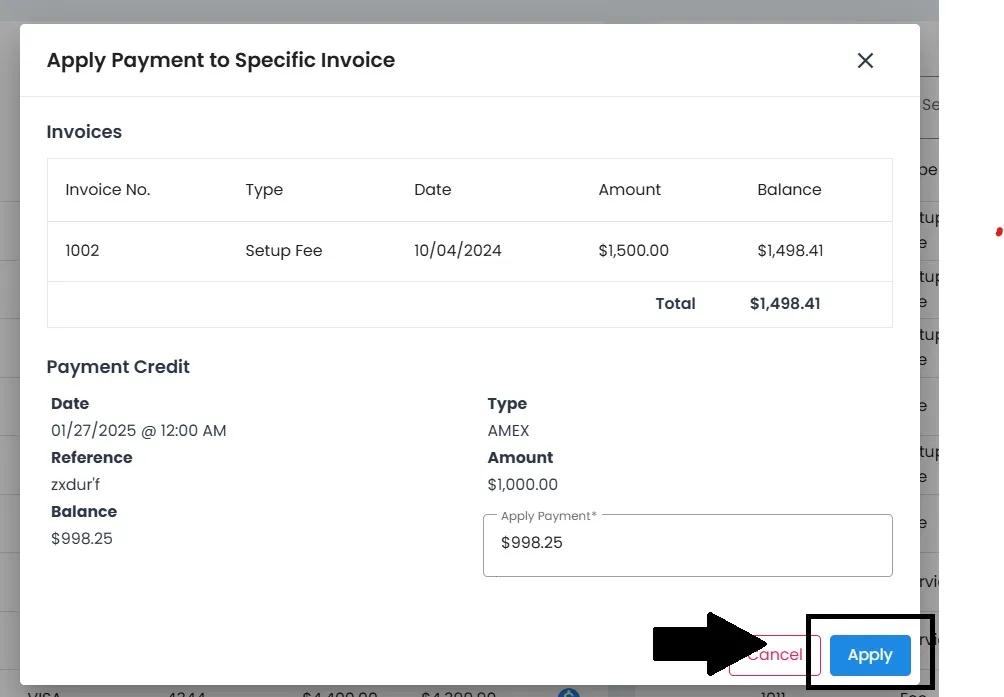
Click the Save button to complete the payment#
Result: Payment Confirmation#
After successfully applying a payment, a confirmation message will appear.
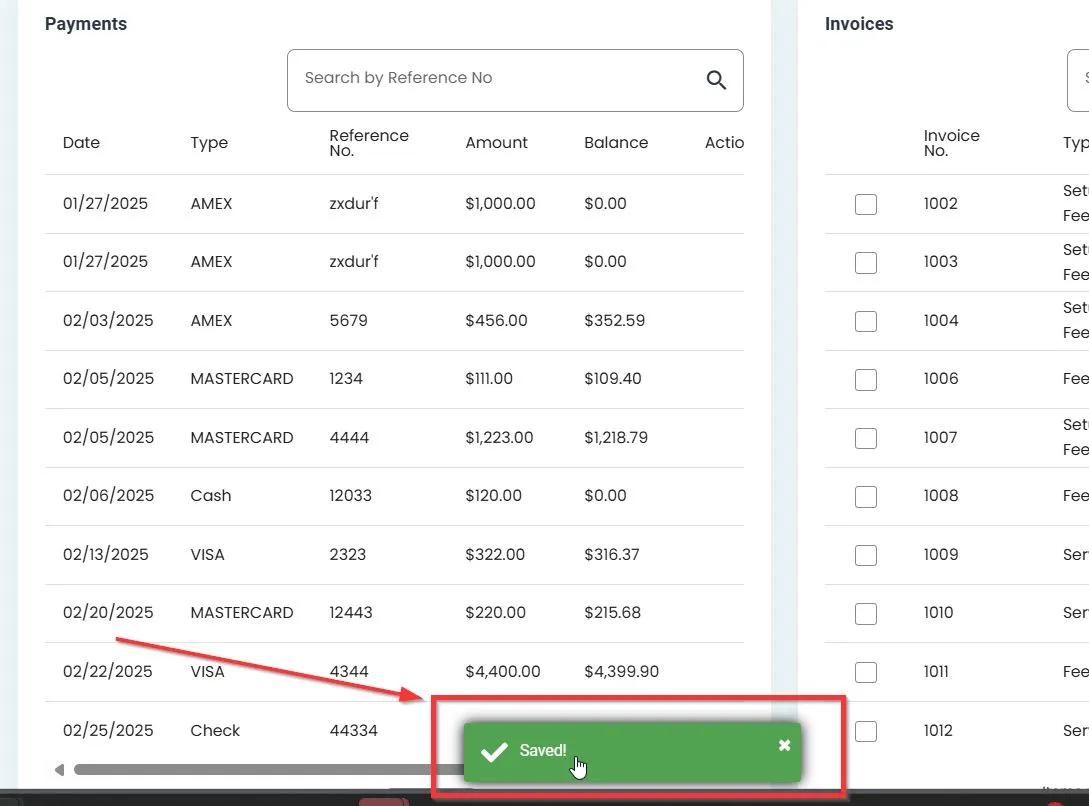
Success message confirming the payment has been applied#
Summary#
The process of matching payments to invoices involves:
Selecting an invoice via the checkbox
Observing how the Payments table updates
Initiating a payment with the payment action button
Entering the payment amount
Saving the payment
This functionality ensures proper tracking and association between payments and their corresponding invoices.